Aug 26, 2026

View Page as Googlebot for Indexing Checks
DraftSEO Team
Google retired Fetch as Google back in 2018, yet plenty of SEO checklists still tell you to use it. That single outdated instruction sends people down the wrong path when they try to view page as Googlebot and figure out why a page won't index. The tool that replaced it, URL Inspection in Google Search Console, works differently and answers a different question than most people assume.
Getting the Googlebot view right matters because what you see in your browser and what Googlebot renders are frequently not the same page. If your JavaScript doesn't execute the way you expect, or a stray robots.txt rule blocks a resource, the rendered version Google indexes can be missing entire sections of content. This isn't a one-click trick — it's a diagnostic process.
What "View Page as Googlebot" Actually Means Today
There's no button labeled "view as Googlebot" anymore. The closest working equivalent is the URL Inspection Tool inside Google Search Console, which shows you the live test result: how Googlebot fetched, rendered, and read the page at that moment.
This distinction trips up a lot of people. The URL Inspection Tool has two different views — the indexed version (what Google has stored, possibly from weeks ago) and the live test (a fresh crawl and render, done right now). Checking only the indexed snapshot tells you nothing about a fix you just pushed live.
Running the Live Test Correctly
Open Search Console, paste the URL into the inspection bar, and click "Test Live URL." Wait for the render to finish — this can take 10 to 30 seconds since Google actually executes the page's JavaScript in a headless Chromium instance similar to the crawler build. Once it completes, click "View Tested Page" to see the rendered HTML and a screenshot.
Reading the Rendered HTML, Not Just the Screenshot
The screenshot tells you the page looked fine. It doesn't tell you whether the text inside it made it into the DOM that Googlebot actually parsed. Pull up the "More Info" tab and check the HTML source against what you see visually — if your product descriptions or article body are missing from that rendered HTML, Google isn't indexing them, no matter how the page looks on screen.
Why a Page Can Look Fine and Still Fail to Render for Googlebot
A page rendering fine in Chrome tells you almost nothing about how Googlebot sees it. Googlebot uses a headless renderer that depends on Google's own crawl budget, timeout limits, and resource-fetching rules — not your browser's cache, cookies, or extensions.
Three failure points cause most rendering gaps. First, blocked resources: if robots.txt disallows a JavaScript or CSS file that the page needs to render content, Googlebot can't execute it, even though your browser fetches it without restriction. Second, client-side rendering delays: single-page apps built on frameworks like React or Vue sometimes need a fetch call to complete before content appears, and if that call is slow or depends on a cookie Googlebot doesn't send, the content never renders in time. Third, meta robots or X-Robots-Tag headers set to noindex, sometimes added by a caching layer or CDN rule that doesn't show up in your CMS editor at all.
Before you conclude it's a JavaScript problem, rule out the simpler explanations. Running a crawl with Screaming Frog in JavaScript rendering mode, alongside its default HTML-only mode, will show you the delta between what's in the raw HTML and what only appears after execution. If that delta includes your main content, you've confirmed a JS-dependent rendering issue rather than an indexing penalty or manual action.
Comparing Your Indexing Diagnostic Tools
Different tools answer different questions, and using the wrong one wastes time chasing a problem that isn't there.
| Tool | What It Shows | Best Use Case |
|---|---|---|
| URL Inspection (live test) | Real-time Googlebot render + indexing status | Confirming a fix worked immediately after deployment |
| URL Inspection (indexed version) | What Google last crawled and stored | Checking how stale the index copy is |
| Screaming Frog (JS rendering mode) | Rendered DOM at scale across many URLs | Finding site-wide JS-blocking patterns |
| robots.txt Tester (in Search Console) | Which URLs and resources are disallowed | Ruling out accidental resource blocking |
| Rich Results Test | Whether structured data parses correctly in the rendered page | Validating schema after a template change |
Notice that none of these is a substitute for another. A page can pass the Rich Results Test and still fail to index because of a noindex header the structured data tool never checks.
Building This Into a Repeatable Indexing Troubleshooting Workflow
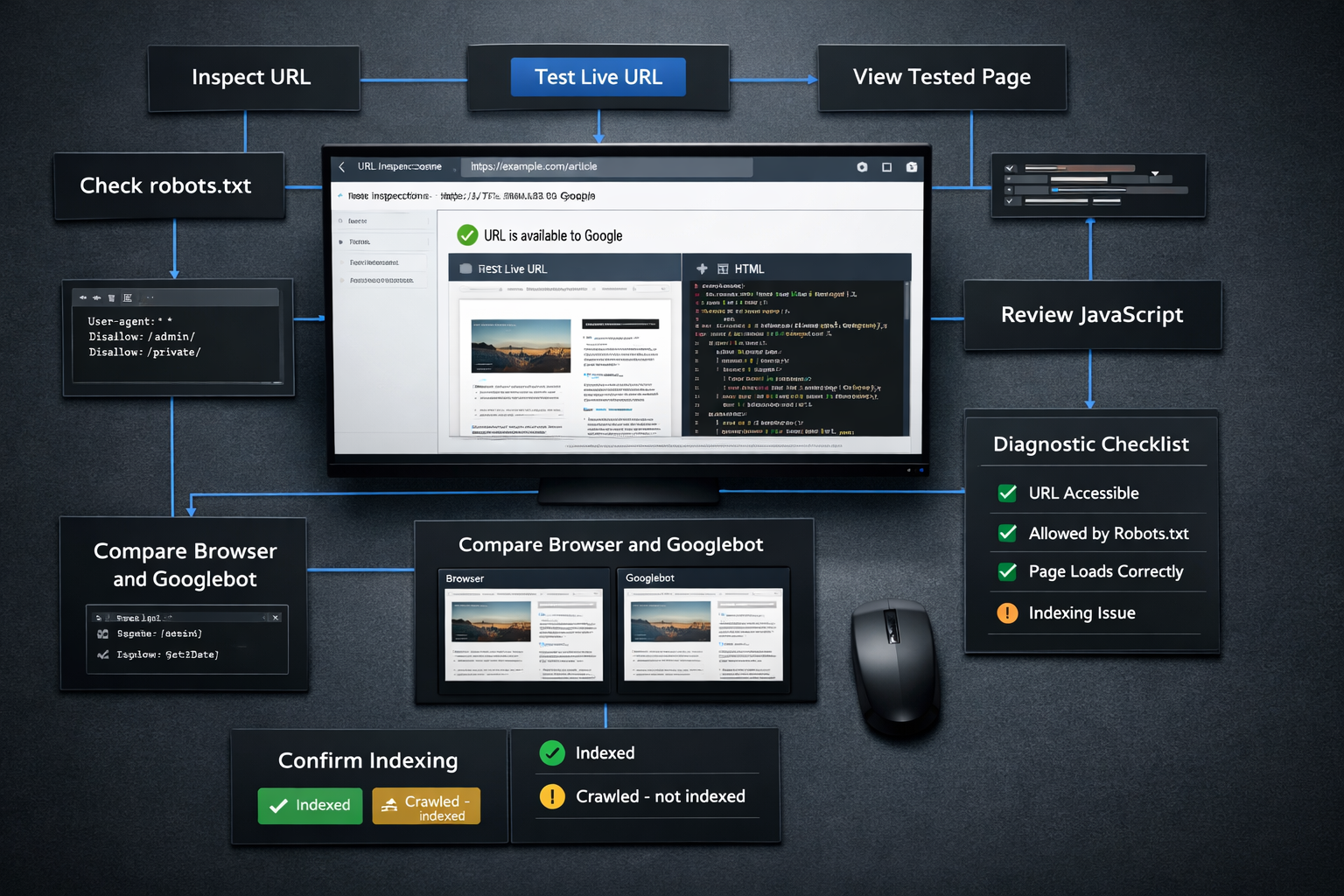
Treat Googlebot-view checks as a sequence, not a single lookup. Skipping steps is how people misdiagnose a robots.txt block as a "Google just doesn't like my content" problem.
- Confirm the URL isn't disallowed in robots.txt using the Search Console robots.txt tester or a direct fetch of /robots.txt.
- Check for a noindex directive in the meta robots tag or X-Robots-Tag HTTP header, since headers set at the server or CDN level are easy to miss.
- Run the URL Inspection live test and compare the rendered HTML against your live browser view, focusing on whether main content text is present in the DOM.
- Crawl the URL with Screaming Frog in both raw-HTML and rendered modes to spot JavaScript-dependent gaps at scale across a template or category.
- Check the mobile-first indexing view specifically — Google predominantly uses the mobile rendering for ranking and indexing, so a desktop-only pass misses the version that actually matters.
- Validate structured data separately, since a page can render its visible content correctly while its schema markup fails silently.
- Re-test after each fix rather than batching changes, so you know which change actually resolved the gap.
Mobile-first indexing deserves its own callout here because it's the most common oversight. If you only test desktop rendering, you can miss a mobile template that lazy-loads content behind a tap interaction Googlebot's crawler never triggers. Always run the live test with the mobile view selected, not just desktop, since that's the version Google is actually scoring.
Keeping New Content Indexable as You Scale Publishing
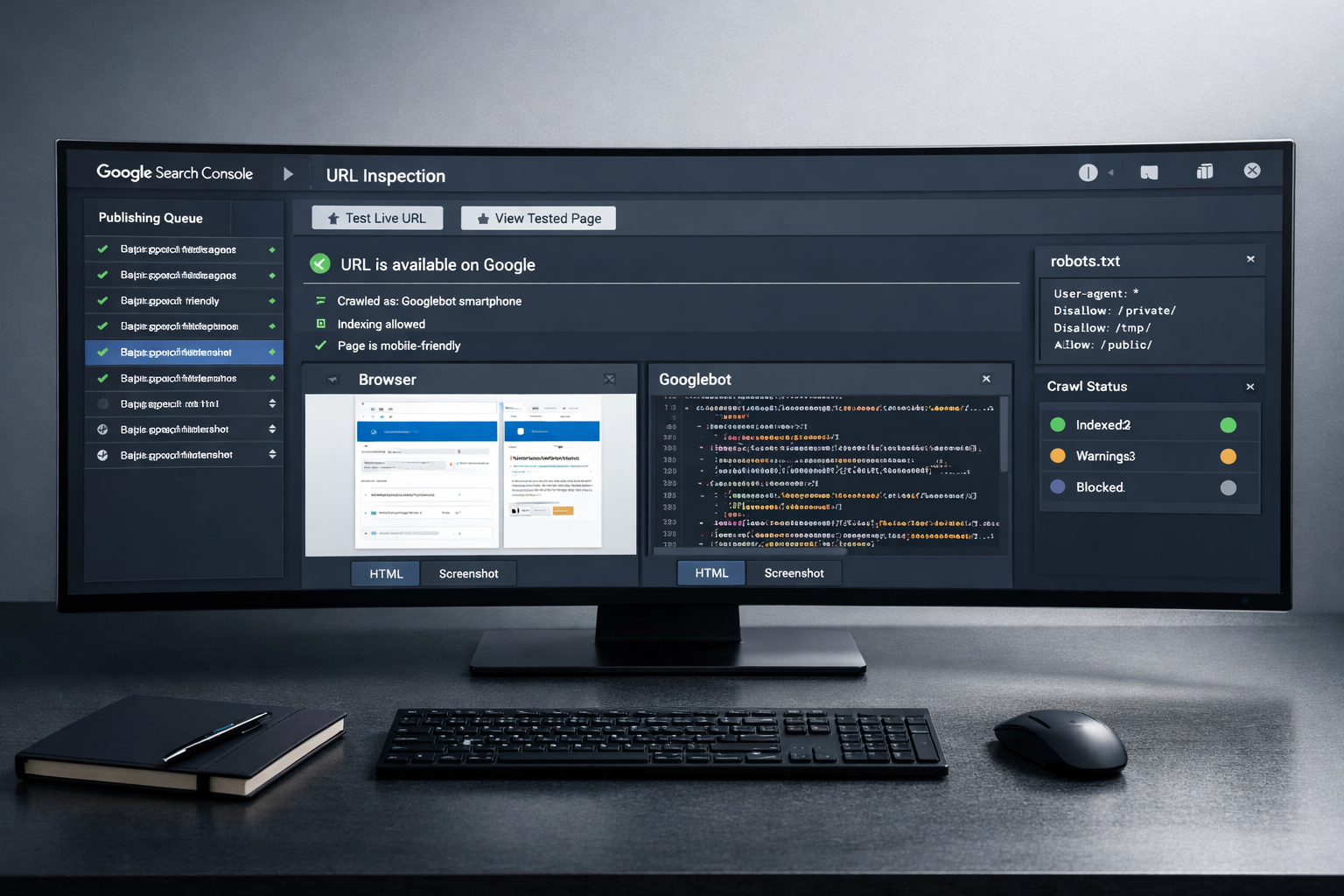
Every new page you publish restarts this whole diagnostic risk. A template that renders fine for ten articles can start failing at article eleven if a plugin update changes how JavaScript loads or a CDN rule quietly adds a noindex header to a URL pattern you didn't anticipate.
Consistency here is a process problem, not a one-time fix. Sites publishing on a regular cadence need a workflow where new pages ship in a format Googlebot can render without a JS-execution dependency, rather than relying on someone manually running URL Inspection after every single post.
This is part of what we built DraftSEO.ai around: it generates 30 articles a month for a connected site and publishes through standard CMS integrations, producing pages in formats that don't rely on heavy client-side rendering to expose the main content. If you want to see how that output holds up on your own site, DraftSEO.ai's free trial with starter credits is available through the pricing page, so you can test a batch of articles before committing to a monthly plan.
Frequently Asked Questions
Does the cached version in Google's index always match what Googlebot rendered?
No. The cached or indexed version can be days or weeks old, while the live test shows the current render. A recent fix won't show in the indexed view until Google recrawls the URL.
Can a page pass a visual check in Chrome but still fail to index?
Yes. Chrome renders using your browser's resources and cookies, while Googlebot uses its own headless renderer with stricter timeouts and no user session, so JS-dependent content can silently drop out for the crawler.
Is checking robots.txt necessary if the page already looks indexed elsewhere?
Yes, because a robots.txt rule can block a resource like a JS bundle without blocking the URL itself, causing partial rendering failures even on pages that technically aren't disallowed.