Publish to WordPress (and WooCommerce)
Install the free plugin, connect in one click, and auto-publish to WordPress.
Steps
In your WordPress admin, go to Plugins → Add New Plugin, search for "DraftSEO", and click Install Now on the DraftSEO Publisher result. A WooCommerce store IS a WordPress site, so WooCommerce sellers use this exact same plugin.
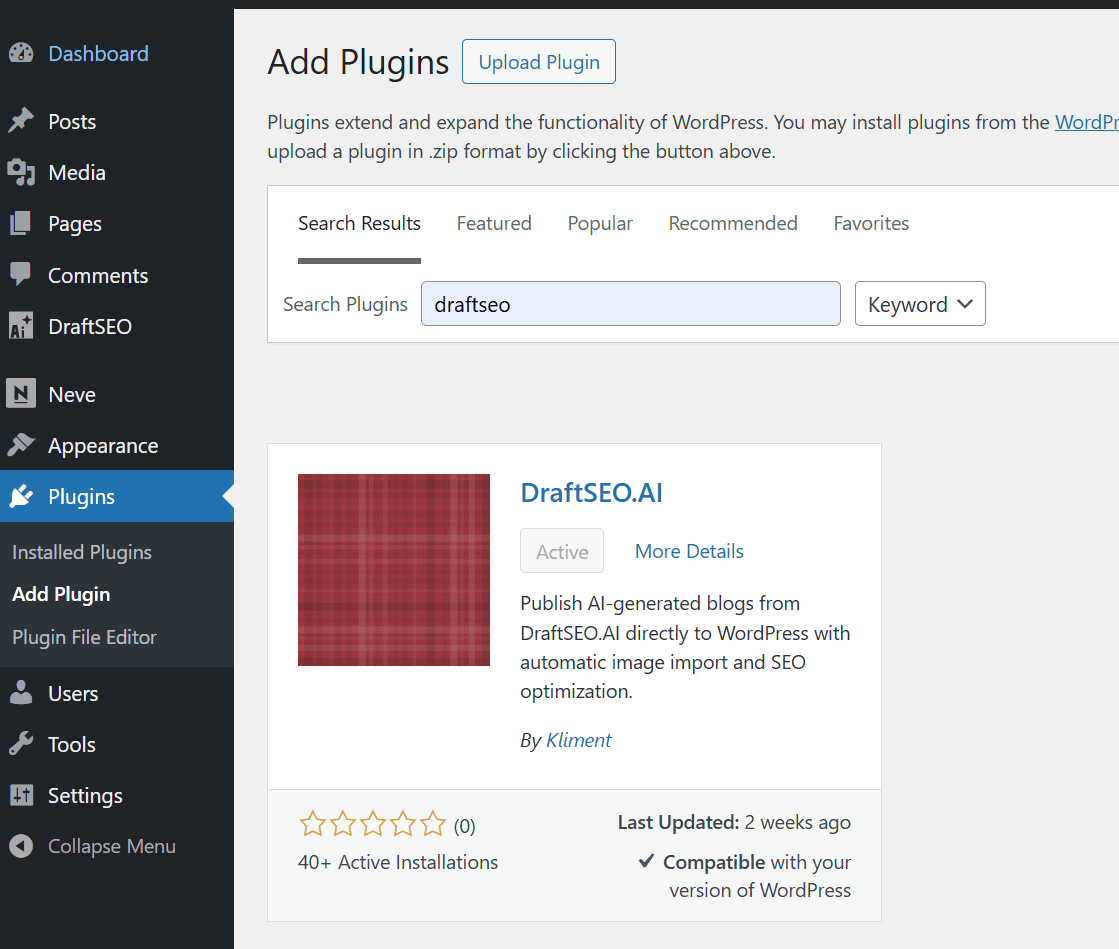
Click Activate once installation finishes. A new DraftSEO menu appears in your WordPress admin sidebar.
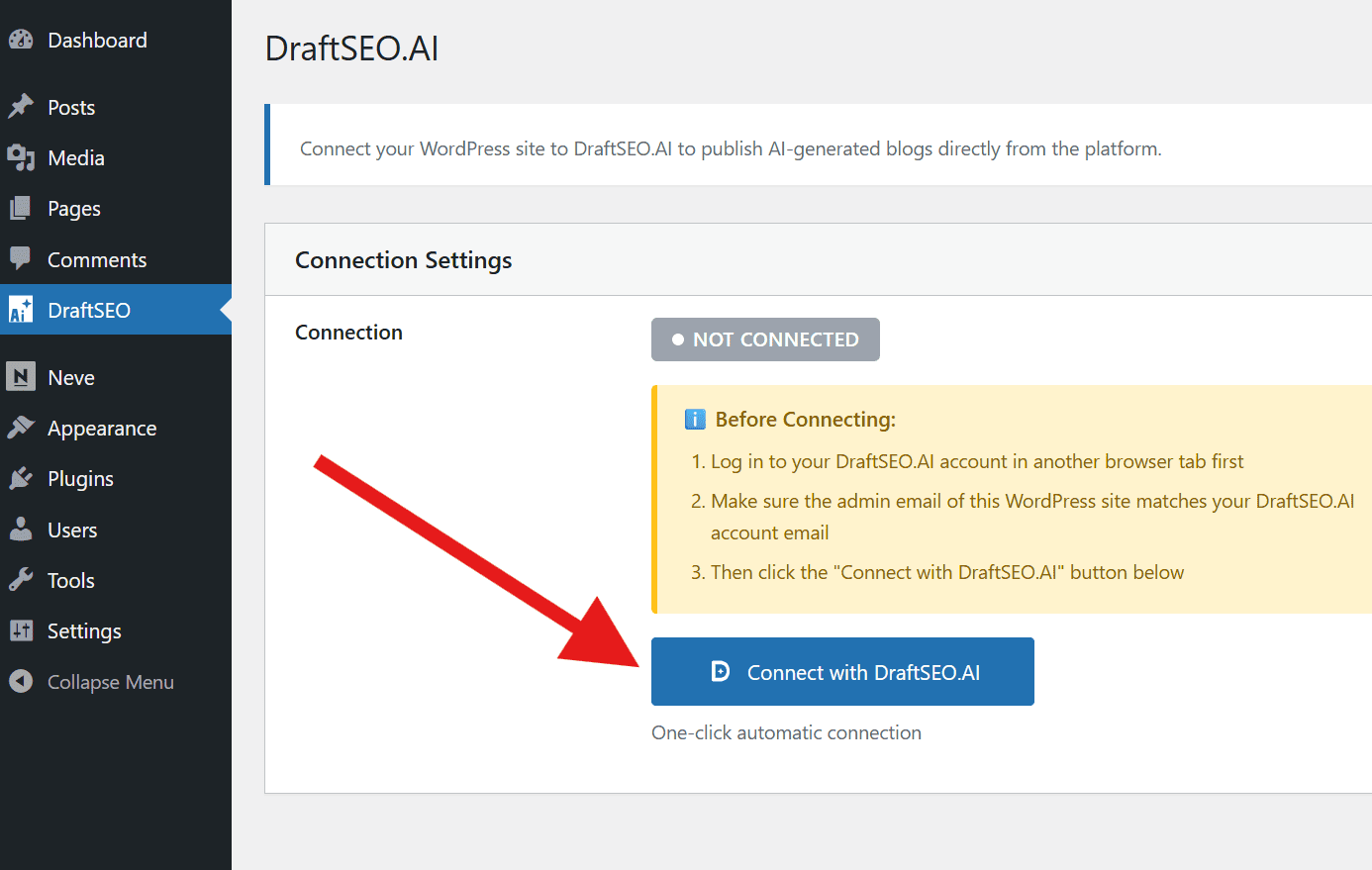
In WordPress, go to DraftSEO → Settings and click "Connect with DraftSEO.ai". You are redirected to DraftSEO to authorize (log in if prompted), then sent back automatically — there are no API keys to copy or paste.
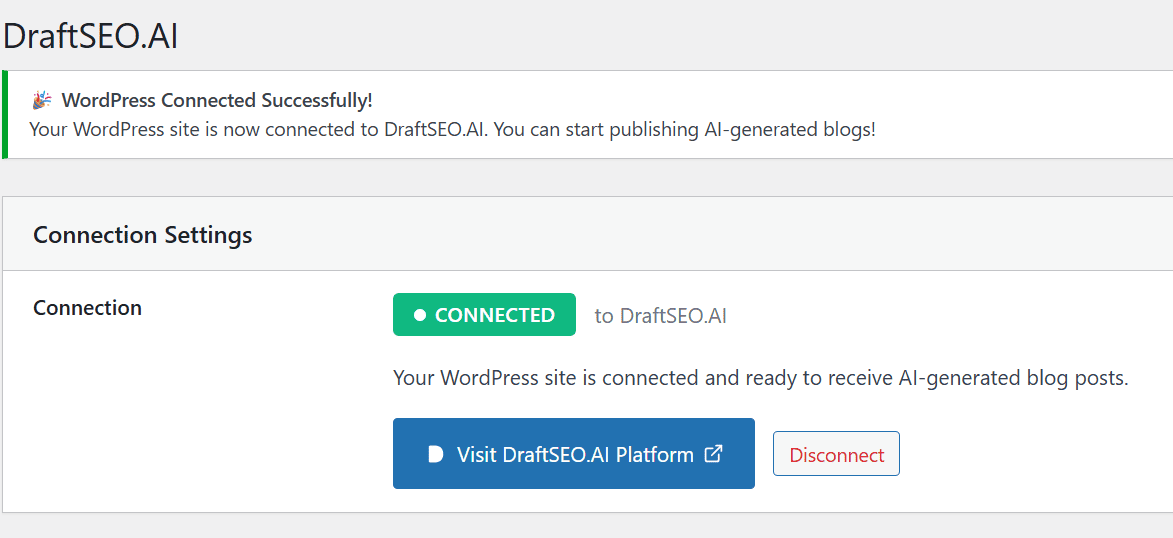
Confirm the green "Connected" status. The same site now also shows up in DraftSEO — pick it in the site switcher and open Site profile to see its connection.
To publish while you generate, turn on the "Publish to WordPress" toggle on the Generate page, pick your site, category, and author, and choose Draft or live, then generate.
To publish an existing article, open it and use its WordPress section — or "Update on WordPress" to push fresh content to a post you already published. In Bulk generation, enable "Publish to WordPress" per article to post a whole batch as each one finishes.
Pro tips
- Log into DraftSEO in another browser tab before clicking Connect in WordPress, so the authorization completes without an extra login.
- The connection uses a short-lived, single-use token and encrypted exchange — API keys are never placed in URLs, and you can disconnect from either side at any time.
- WordPress Auto-Publish adds no per-publish fees; pricing is per connected site, and your first site starts on the free trial.